
Your guide to getting started
A little setup.
A daily perspective.
Connect Apple Health, choose your beer style and put your reading where it works for you.
Coming soon to the App Store
iPhone · iOS 17+ / Apple Watch · watchOS 10+
Start with Apple Health
Install and open Beer Energy on your iPhone. For Watch complications, also install and open the companion app on your paired Apple Watch.
- Choose Connect Apple Health and allow read access to Active Energy. The app does not request permission to write Health data.
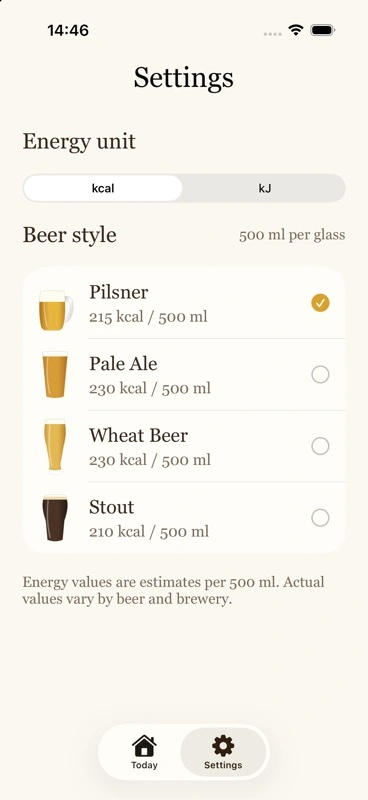
- In Settings, choose kcal or kJ and your preferred beer style.
- Open Today to check your reading. The refresh button or a pull down asks for a new reading. Review Health access if no energy is available.
Each device reads its own Health store. Completing the permission sheet does not guarantee that read access was granted.
Apple’s instructions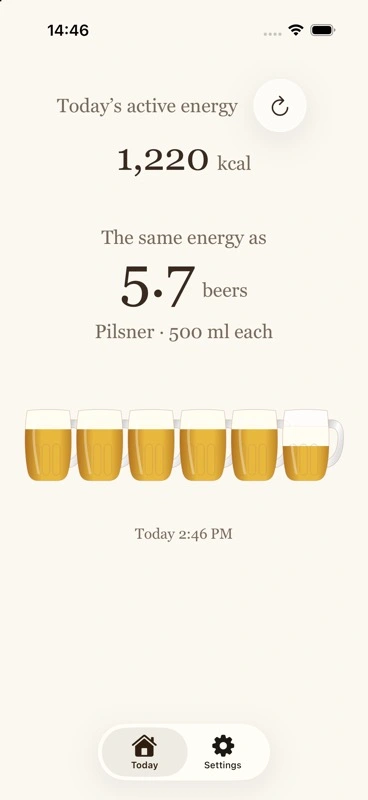
Add a Home Screen widget
Choose a small, medium or large widget. All three use the beer style and energy unit selected in the app.
- Touch and hold an empty area on the Home Screen until the icons move.
- Choose Edit → Add Widget. On iOS 17, use the + button.
- Find Beer Energy, swipe to choose a size and tap Add Widget.
- Move it into place and tap Done.
Open the app at least once before looking for it in the widget gallery.
Apple’s instructions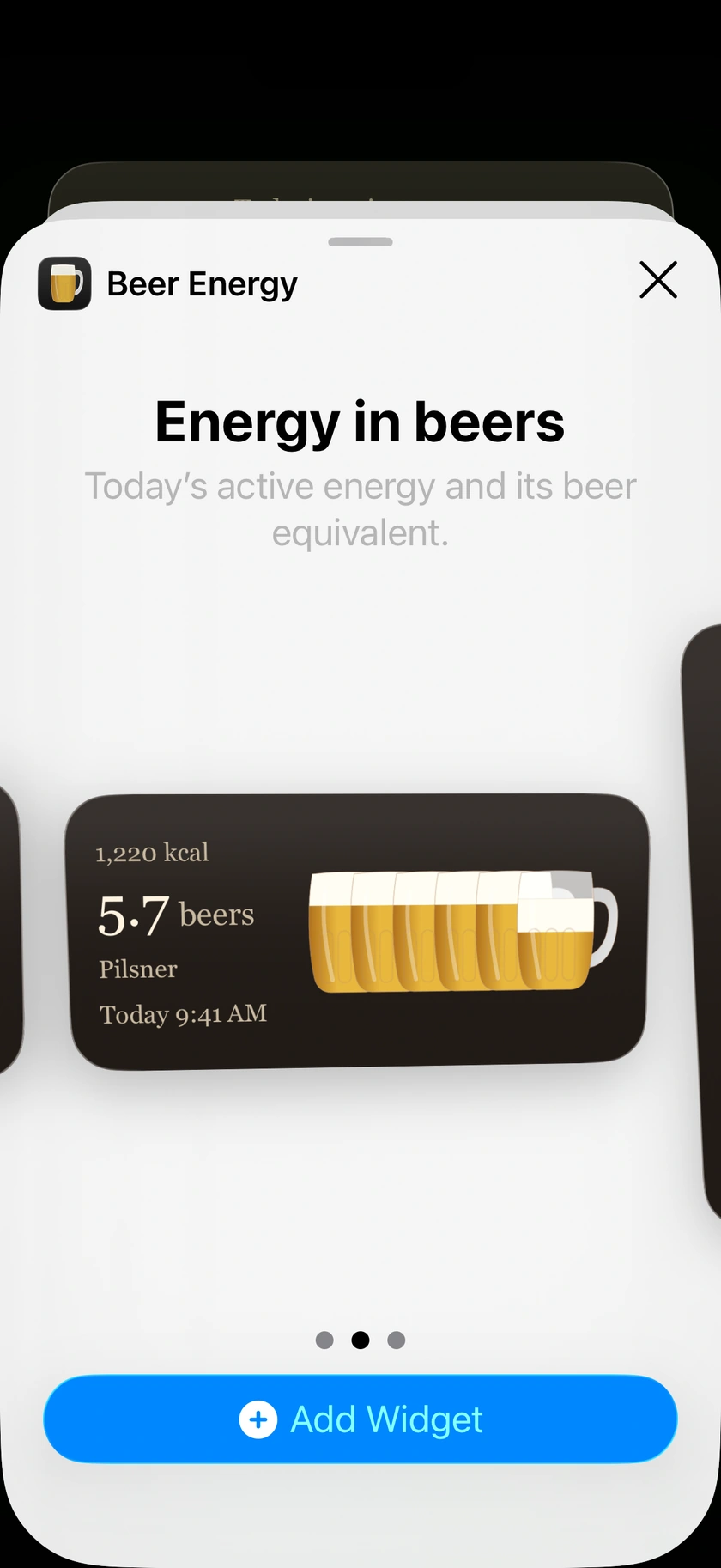
Make room on your Lock Screen
A circular, rectangular or inline widget makes your energy comparison visible without opening the app.
- Touch and hold the Lock Screen, choose Customize and select the Lock Screen.
- Tap the widget area below the clock, or the date row above it for an inline widget.
- Choose Beer Energy, add a supported widget, close the picker and tap Done.
The system controls the available space and appearance. Health readings respect system privacy settings.
Apple’s instructions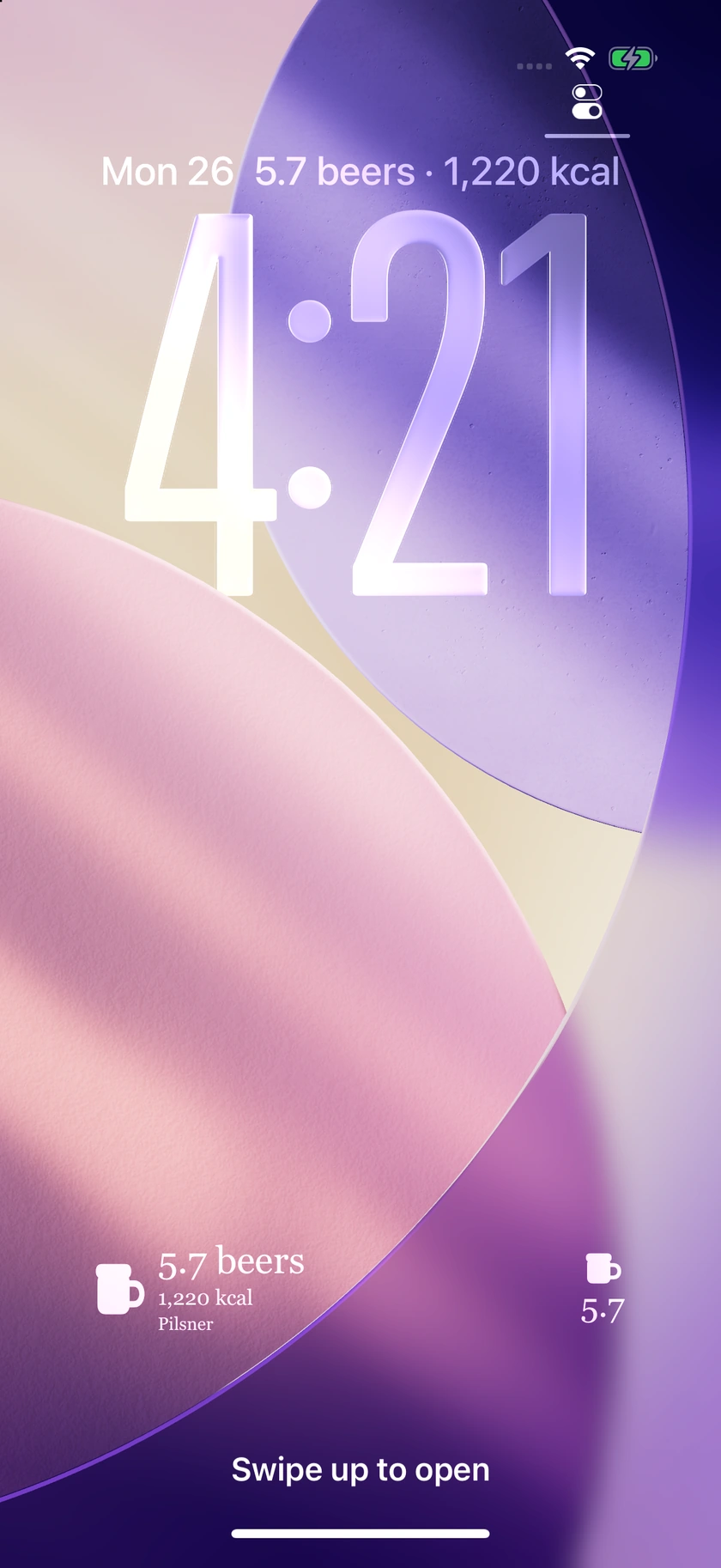
Add a Watch complication
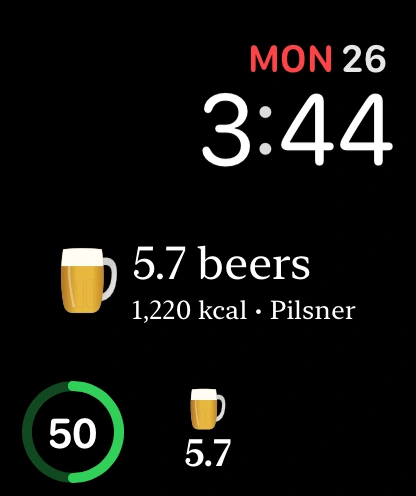
Choose a watch face with a compatible circular, rectangular, inline or corner slot. Available slots depend on the face.
- Touch and hold your watch face and tap Edit.
- Swipe to the complications, then tap a compatible position.
- Choose Beer Energy and the available complication.
- Press the Digital Crown to finish, then return to your watch face.
Open Beer Energy on the Watch and review Health access there if the complication shows no reading.
Apple’s instructions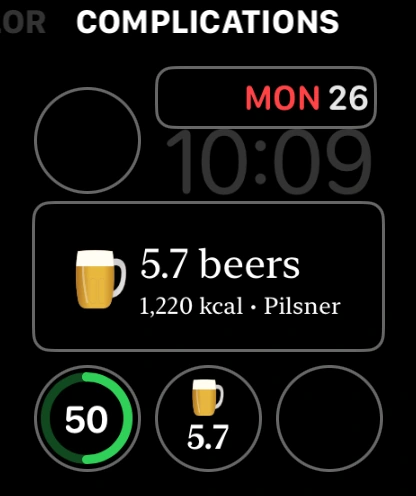
Keep it in your Smart Stack
Use a compatible Beer Energy widget in the Apple Watch Smart Stack for another quick way to check your day.
- From the watch face, turn the Digital Crown upward to open the Smart Stack.
- Touch and hold the stack to edit it, then tap +.
- Find Beer Energy and choose an available widget. Pin it if you want it to stay near the top.
- Tap Done to finish.
Widget availability and editing controls depend on your watchOS version.
Apple’s instructionsBeer Energy
A size for every screen.
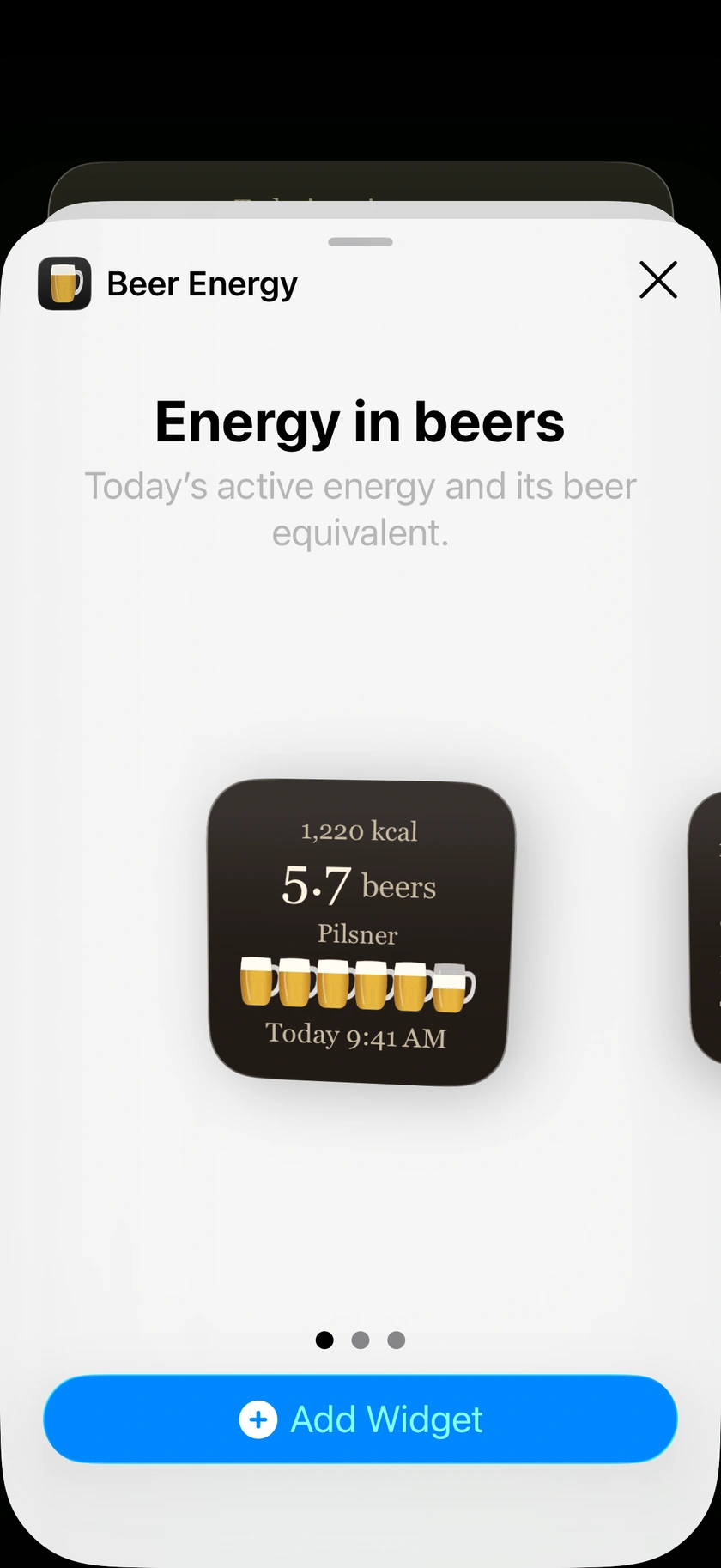
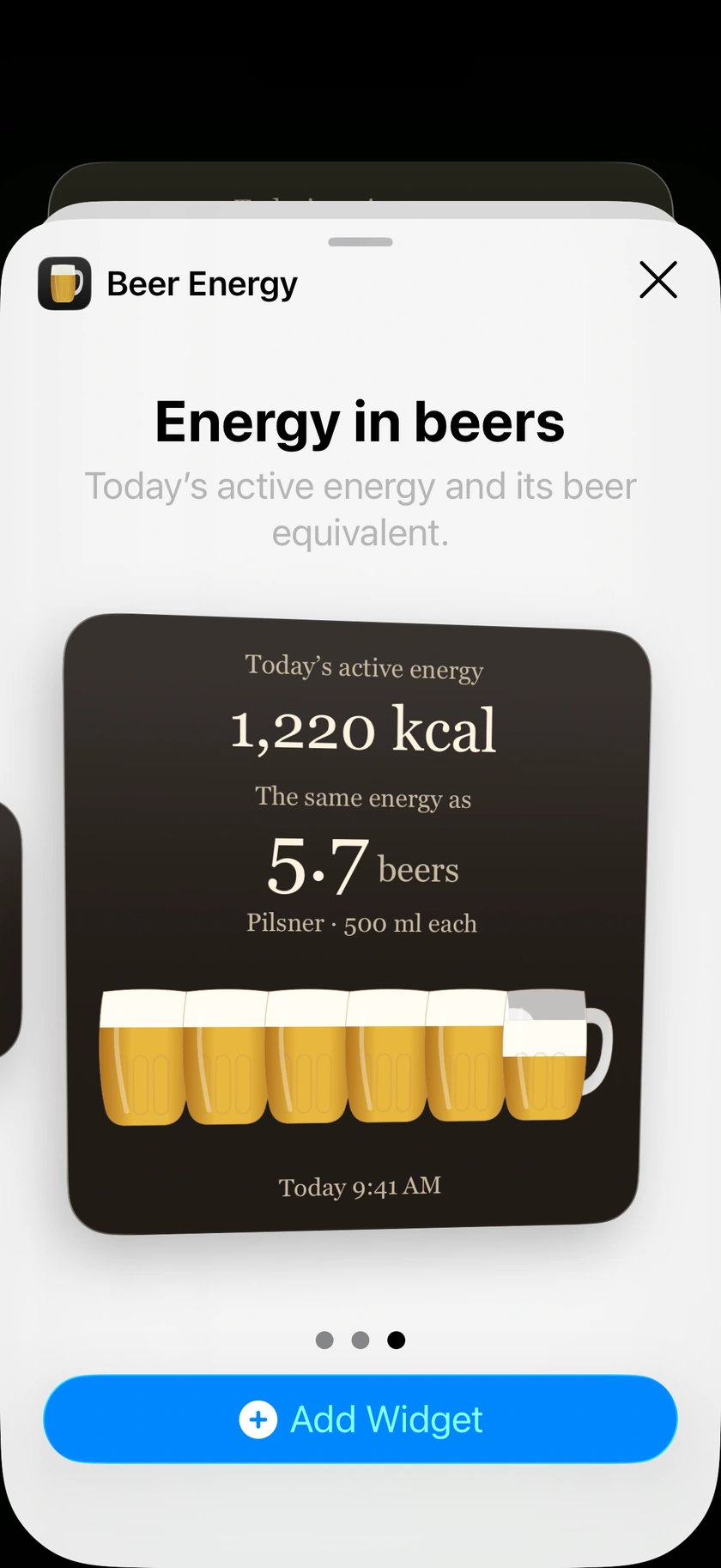
Fresh app screenshots and native widget previews with example readings. Appearance may vary by device and system version.
A few useful answers.
Why is there no reading?
There may be no Active Energy recorded today, or read access may be off. Check today’s Active Energy in Apple Health and review Beer Energy’s permissions. Open the app on the relevant device and refresh.
Why has my widget not updated yet?
iOS and watchOS decide when widgets refresh. Open the app and refresh to request an update. While Health data is inaccessible, the app may show its latest same-day cached reading. Previous-day readings are cleared at midnight.
How is the beer equivalent calculated?
Today’s active energy is divided by the estimated energy in a 500 ml glass: Pilsner 215 kcal, Pale Ale 230 kcal, Wheat Beer 230 kcal or Stout 210 kcal. Actual values vary by beer and brewery.
Does the app measure activity or track drinking?
No. Beer Energy reads Active Energy already recorded in Apple Health and displays an energy comparison. It does not measure exercise, log alcohol or write data to Health.